To speed up your food truck line, fix the parts that take the most time per customer: deciding, ordering and paying. Cooking matters, but at most trucks the line stalls at the window, while someone reads a long menu, asks what is in a dish, picks a size, and then hunts for a card. The nine fixes below cut that time, and most cost nothing.
We have ordered them from easiest to biggest change. Try one or two at a time so you can tell which ones actually helped.
Where does time go at the food truck window?
Break one customer’s visit into steps and you can see where to cut.
| Step | What slows it down | Fix in this guide |
|---|---|---|
| Reading the menu | Too many items, small type | Fix 1 |
| Ordering | Questions, options, sold-out surprises | Fixes 2 to 5 |
| Ringing it up | Hunting for buttons, retyping options | Fixes 2 and 3 |
| Paying | Finding a card, slow reader, change | Fix 6 |
| Waiting for food | Kitchen flow, order mix-ups | Fixes 7 and 8 |
| Line itself | Everyone ordering at one window | Fixes 8 and 9 |
Throughput is the number of customers you serve in a set time, such as per hour at peak. It is limited by your slowest step. If the grill can handle more orders than the window can take, speeding up ordering and payment is what raises throughput. If the grill is the bottleneck, a faster window just moves the line.
Fix 1: How should you lay out the menu board?
Make the board readable from the back of the line in a few seconds.
- Put best sellers at the top and in the biggest type.
- Group by type: mains, sides, drinks.
- Show prices clearly, in the same format as the POS.
- Describe each item in a few words, not a paragraph.
- Keep specials on a separate, swappable sign.
Customers who decide before they reach the window order faster. A clear board does more for speed than any piece of software.
Fix 2: Put best sellers on the first POS screen
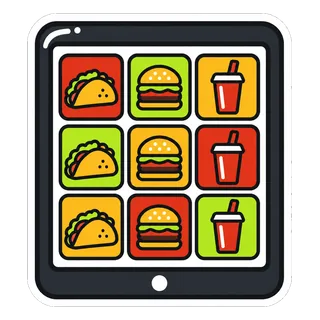
Your POS screen should mirror the board. In GetFoodTruckPOS, quick menu buttons are grouped by category, so set up categories in the same order as your board, and put the items that sell most at the top of the first category.
Check your sales by item report after a few weeks. If an item you put at the back sells constantly, move it up. The quick menu page shows how categories and buttons work on a phone screen.
Fix 3: Use modifiers instead of duplicate items
Modifiers are options attached to an item, like size, spice level, add-ons or no onions. Instead of creating “Burger”, “Burger with cheese”, “Burger with cheese and bacon” as separate buttons, create one “Burger” with modifiers for cheese and bacon.
That keeps the screen short and the order accurate. In GetFoodTruckPOS you can add modifiers and variations such as sizes, add-ons and spice level. The help article set up modifiers and sold out walks through it.
Keep modifiers short. If one item has a dozen options, the ordering conversation will be long no matter how fast the screen is.
Fix 4: 86 items the moment they run out
When something sells out, mark it sold out (“86 it”) right away. In GetFoodTruckPOS it stops showing as available, including on the online store. Then:
- Cross it off the board or flip a “sold out” tag.
- Tell the person on the window.
- Have a quick suggestion ready: “Out of brisket, the chicken is our next most popular.”
Nothing slows a line like three customers in a row ordering something you no longer have.
Fix 5: Offer a few pre-built combos
Combos cut decisions. “Tacos, side and a drink” is one choice instead of three. Set each combo up as its own item with a short modifier for the drink or side choice, and put it near the top of the screen.
Keep it to two or three combos. Too many and you are back to a long menu.
Fix 6: How do you make payment faster?
Payment is where many lines quietly lose time.
- Ring the total while the customer is still deciding on a drink. The reader is ready when they are.
- Prefer contactless. Taps are quick, and many customers pay with a phone or watch.
- Keep the reader where customers can reach it without leaning through the window.
- Keep the customer display or reader screen in the shade so totals are readable.
- Keep plenty of small change in the cash drawer for cash customers.
- Use split payments when a group wants to pay part cash, part card, rather than ringing two sales.
GetFoodTruckPOS works with your processor and supports cash, card and custom payment methods. If your reader is the slow part, read food truck card readers explained for what to check.
Fix 7: Get orders to the kitchen clearly
A fast window is wasted if orders get mixed up at the grill. Use order notes for special requests, call out names or order numbers, and print or display tickets in the same order they were taken. Fewer remakes means fewer people waiting at the side of the truck.
Fix 8: Should you add a runner with a second device?
On your busiest days, often yes. A runner walks the line with a second phone or tablet, takes orders and payment, and sends customers to the window just to pick up.
How to set it up:
- Sign the runner in on a second device with their own staff PIN, so sales by staff shows their orders.
- Give them a reader that works with your processor, or keep them to contactless and cash.
- Make sure both devices have signal, ideally on different carriers. GetFoodTruckPOS needs a data connection on each device.
- Agree how orders reach the kitchen, such as name callouts or a written ticket.
- Keep the runner on a shortened menu of best sellers to keep it quick.
Check your plan includes enough devices; the pricing page shows device limits per plan.
Fix 9: Turn on order-ahead pickup
The fastest line is one the customer never stands in. GetFoodTruckPOS generates an online store from your menu automatically, and where you turn it on, customers can order ahead and pick up at the window.
Pair it with your Today’s spot post so customers see where you are and can order before they arrive. Our guide to posting your food truck location daily shows the morning routine, and the online store page explains what is generated.
Plan for it so it helps rather than hurts:
- Set a time window for pickups, or pause order-ahead during the biggest rush.
- Have a clear pickup spot at the window, with names called.
- Sold-out items disappear from the store when you 86 them, so online customers do not order what you cannot make.
How do you know if the changes worked?
Measure before and after, using your own reports rather than guesses.
| Measure | Where to find it | What good looks like |
|---|---|---|
| Orders in your busiest hour | Your sales list for that day | More orders in the same hour |
| Average order value | Daily sales totals | Steady or higher after adding combos |
| Sold-out items | Your notes and stock | Fewer surprises, better prep |
| Sales by staff | Staff reports | Runner adds orders without hurting the window |
Change one thing at a time, compare similar days at similar spots, and keep what works.
What slows the line that software cannot fix?
Some delays have nothing to do with the POS, and they are worth checking before you buy anything.
- Prep. If sauces, toppings and garnishes are not prepped and within reach, every order waits on them. Use your sold-out notes to set better prep amounts.
- Window layout. The person taking orders should not have to turn around or walk to reach the reader, the drawer or the pickup shelf.
- Roles. At peak, one person should own ordering and payment, and others should own cooking and handing out food. Swapping jobs mid-rush causes mistakes.
- Pickup confusion. A clear “order here” and “pick up here” sign keeps the two groups from blocking each other.
- Long conversations. Regulars love a chat, and that is good business, but save it for the quiet hour.
Fix these first, then use the software fixes above to make the window itself faster.
Do discounts and loyalty slow the window down?
They can, if every discount needs a conversation. Keep discounts to a few clear, preset options, such as a staff meal or a regulars’ deal, so they are one tap instead of a calculation. For loyalty, reward points tied to a customer record are quicker than paper punch cards that need stamping and checking. In GetFoodTruckPOS, find the customer, ring the sale, and the points are added. If looking up a customer takes too long at peak, add their points after the rush rather than holding up the line.
What to do next
Pick two fixes from this list for your next busy service, such as moving best sellers to the first screen and setting up one combo. To see the quick menu, modifiers, sold-out and order-ahead in action, read how it works or start from the pricing page.