The window
Tablet on a mount. Takes orders, cash and cards, prints or texts receipts. Staff sign in with a PIN so sales are credited to the right person.
The till is the phone in your apron or the tablet on the counter. Switch sizes below to see the same register on both.
Pick by the line you serve, not by the device you like. A truck that does 40 orders at lunch is fine on a phone. A truck that does 200 at a festival wants a 10 or 11 inch tablet at the window and a phone for the runner taking orders down the line.
| Device | Best job on a truck | Watch out for |
|---|---|---|
| Phone | Carts, quiet spots, a line-buster runner, owner checking sales from home | Small buttons with gloves on; keep a power bank on it |
| Tablet (10 to 11 in) | The main window register, customer-facing screen, kitchen ticket view | Mount it out of the sun and away from the fryer |
| Laptop | Menu edits, stock counts and reports at the commissary | Not for the window; it is slow to hand over |
The browser version needs nothing installed: open the address, sign in, add it to your home screen. The mobile app gives a full-screen register and quicker sign-in. Sales from either land in the same account the second they are rung.
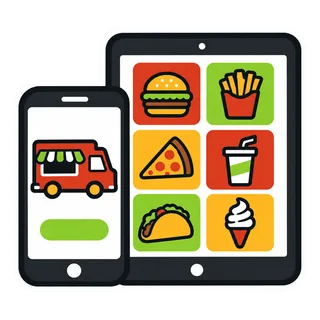
Tablet on a mount. Takes orders, cash and cards, prints or texts receipts. Staff sign in with a PIN so sales are credited to the right person.
A phone walking the line at rush, taking orders before people reach the window. Same menu, same modifiers, separate register.
Anywhere. Watch today's sales, change a price, mark something sold out or post tomorrow's spot without touching the window device.
Do this once per device, at the commissary, before your first service.
Open the app or the browser on the phone or tablet that lives at the window and sign in with the staff account for that truck.
Choose which truck and which register this device is. A second phone becomes register two for a runner.
Turn on auto-rotate lock, raise brightness, and add the POS to the home screen so it opens like an app.
Ring a cash sale, print or share the receipt, then void it. You know the device is ready before the line forms.
Yes. GetFoodTruckPOS runs on an iPhone in the browser or through the mobile app, so the phone you already own can be the register. Android phones work the same way. A phone is enough for a cart or a small truck; many owners move to a tablet later because bigger buttons are easier to hit fast. Card payments go through your processor's own reader or app.
Yes. It runs on Android phones and tablets in the browser or the mobile app, so you are not tied to one brand of device. Budget Android tablets are a common choice for trucks because they are cheap to replace if one takes a fall. Keep the system and browser up to date, and test your card reader with that device before your first service.
Use whichever feels faster on your device; both run the same account. The browser needs nothing installed and works on any phone, tablet or laptop, which is handy when you borrow a device. The app sits on the home screen and is quicker to open between orders. Many owners use the app on the window device and the browser on a laptop at home for reports.
A phone works for short menus and carts, but a tablet is easier at a busy window. With a phone, keep categories tight and put your top sellers on the first screen so most orders are two or three taps. With a tablet, you see more buttons at once and make fewer mistakes when hands are greasy. You can start on the phone and add a tablet later without redoing anything.
Plan to run on power, not battery. Use a USB charger off the truck's inverter or a power bank rated for a full shift, and lower screen brightness when you can. Hotspot use, a bright screen and Bluetooth to a printer or reader all drain battery faster. Keep a spare charged power bank in the cab for festival days, because a dead device means cash only until it is back up.
Mount it where you can tap it without turning away from the window, away from the fryer and steam. Owners commonly use a locking tablet stand bolted to the counter or a swivel mount so the customer can see the screen when paying. A case with a rubber edge helps against drops and grease. Leave room for the charging cable and keep it clear of hot surfaces.
Yes, on the Truck plan you can run up to 3 devices on one truck, so a runner can take orders down the line on a phone while you ring at the window. All sales land in the same day's report, and the register close still balances per register. The Cart plan is one device, so upgrade when you add a second person taking orders.
Each device needs a data connection, but they can share one. Many trucks run every device off a pocket hotspot or a router with a SIM, and keep the main phone's own mobile data as a backup. A second SIM on a different carrier gives you a fallback when one network is weak at an event. Test signal at a new spot before you open the hatch.
Your sales are not stored only on that phone, so you pick up another device, log in and keep selling. Your menu, prices and the day's sales so far are in your account, not on the handset. That is why it helps to have the app installed on a second phone, even a personal one, before you need it. Lock it down with a staff PIN on the Truck plan.
Sign up, add your truck and your menu, and ring a test sale before your next service.
30 days free, no cardMonth to month0% of your card sales
Nothing parked here for
Try a shorter word, or one of these:
Country and currency
Sales tax is added at checkout where it applies.Prices include 5% VAT.Plus applicable sales tax.
Accessibility